The "Rich Text" tab allows rich text word processing capabilities in R:BASE. The rich text data files can be stored within database files (VARBIT) or as external files in a folder.
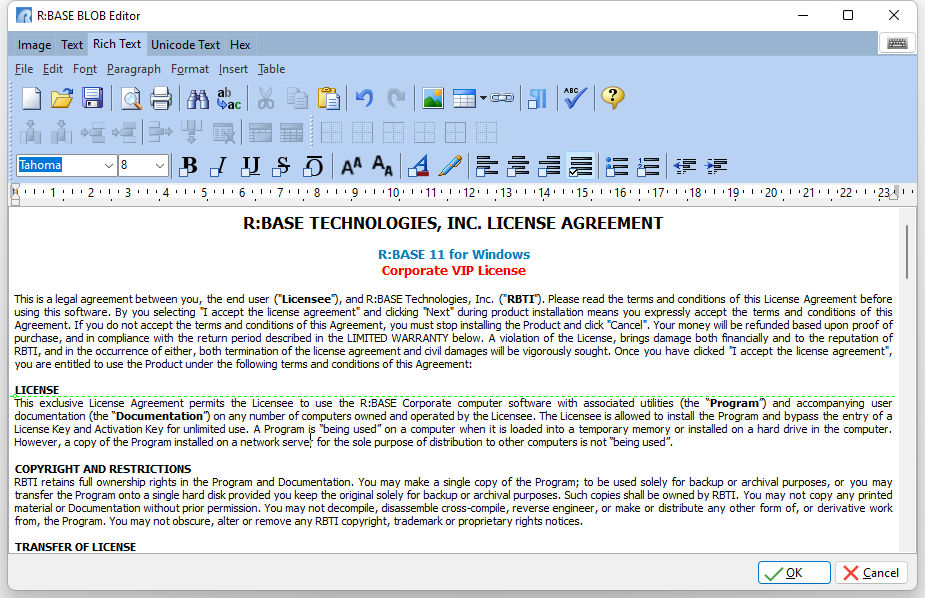
menu bar
File
•New - allows you to create a new file
•Open - opens an existing file
•Save - saves the current file
•Save As... - saves the current file as a new file
•Export - exports the current file to an RTF or text file
•Print Setup... - opens the Print Setup dialog for changing page specific settings
•Print Preview - opens the Print Preview dialog
•Print - prints the current file to the default printer
Edit
•Undo - undoes the last change made
•Redo - reverses the effect of the last undo
•Cut - cuts the currently selected object(s)
•Copy - copies the currently selected object(s)
•Paste - pastes the currently cut or copied object(s)
•Paste Special - pastes text as Richview, rich text, text or Unicode format
•Make Line(s) Read-Only - current file becomes read-only or removes read-only status
•Find... - opens Find Text dialog box to locate text
•Find Next - locates the next text where matches search
•Replace... - opens Replace Text dialog box to locate and replace text
•Character Case - alters the case of the selected text
•Insert Page Break - adds a page break
•Remove Page Break - removes the page where the cursor is located
•Select All - selects all of the items
Font
•Font - alters a text font type, size, style, effect, character spacing, horizontal spacing, and offset
•Style - alters the select text style
•Size - alters the selected text size
•Text Color - alters the text color
•Text Background Color - alters the text background color
Paragraph
•Paragraph - specifies paragraph indents, spacing, tabs, and text flow
•Paragraph Borders and Background - specifies paragraph border options and color settings
•Align Left - aligns text to the left
•Align Center - aligns text to the center
•Align Right - aligns text to the right
•Justify - justifies text to fit within the window
•Bullets and Numbering - allows customized options for bulleted and numbered lists
•Bullets - adds list bullets to the selected text
•Numbering - adds list numbering to the selected text
•Word Wrap - specifies if text is wrapped within the window
•Decrease Indent - decreases the indent for text
•Increase Indent - increases the indent for text
•Single Line Spacing - enables single line spacing
•1.5 Line Spacing - enables 1.5 line spacing
•Double Line Spacing - enables double line spacing
Format
•Background - adds an image to the background
•Background Color - specifies the entire background color
•Fill Color - specifies the fill color
•Object Properties - used to edit Table Properties
Insert
•File - inserts a rich text or text file
•Picture - inserts an image
•Horizontal Line - inserts a horizontal line
•Hypertext Link - adds a hypertext link
•Symbol - inserts a character symbol
•DB Label - inserts a database label for a column
•Variable Label - inserts a variable label for a defined variable
Table
•Insert Table - inserts a table
•Insert Column Left - inserts a column to the left of the cursor within the current table
•Insert Column Right - inserts a row to the right of the cursor within the current table
•Insert Row Above - inserts a row above the cursor within the current table
•Insert Row Below - inserts a row below the cursor within the current table
•Delete Rows - deletes the selected rows
•Delete Columns - deletes the selected columns
•Delete Table - deletes the current table
•Select - allows a table, the columns, rows, or all to be selected
•Align - allows alignment options
•Cell Borders - toggles the display of the table cell borders
•Split Cells - splits a current cell
•Merge Cells - merges the selected cells
•Show Grid Lines - toggles the display of the table grid lines
•Table Properties - displays the Table Properties
Toolbars
|
|


Button |
Description |
|
Font Style |
|
Font Size |
|
Bold, Italic, Underline, Strikeout, and Overline |
|
Left, Center, Right, and Full Justify |
|
Bullets |
|
Numbering |
|
Decrease Indent , Increase Indent |
|
Paragraph Background Color |