The PDF Text Field control places field on the PDF output which can be used to enter and edit text. The text field data can be accessed by a java script function.
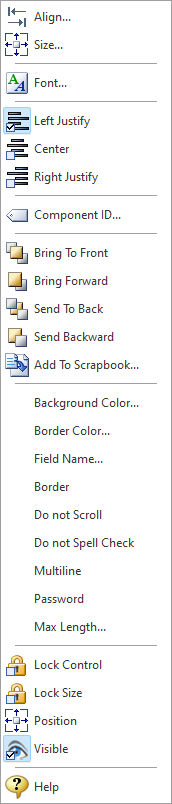
Context Menu (right click) Options
•Align - Displays the Alignment dialog for adjusting the horizontal and vertical alignment of the selected objects •Size - Displays the Size dialog for adjusting the height and width of the selected objects •Font - Displays the Font dialog for the font style, size and color of the object •Left Justify - Text is left justified •Center - Text is center justified •Right Justify - Text is right justified •Component ID - Unique identifier used when passing PROPERTY/GETPROPERTY parameters in statements calling the report •Bring To Front - Places the currently selected object on the foreground of layered objects •Bring Forward - Moves the currently selected object forward one layer at a time •Send To Back - Places the currently selected object in the background of layered objects •Send Backward - Moves the currently selected object backward one layer at a time •Add to Scrapbook - Places the currently selected object in the Report Scrapbook •Background Color - Specifies the background color for the object •Border Color - Specifies the object's border color on the PDF output •Field Name - Specifies the object's field name on the PDF output •Border - Specifies if the object will display a border on the PDF output •Do not Scroll - Specifies if the control will allow for scroll bar for multi-line objects when the text length is greater than the size of the control •Do not Spell Check - Specifies if the control will not be subject to spell checking •Multiline - Specifies if the object will support multi-line text •Password - Specifies if the object will display asterisks (********) when text is entered to protect a password •Max Length - Specifies if the maximum length of text the object will display •Lock Control - Locks the selected control(s) to prevent any accidental changes •Lock Size - Locks the selected control(s) to specifically prevent accidental size changes •Position - Opens the Position dialog window for specifying hard-coded coordinates •Visible - The Visible property determines whether a report component will be printed •Help - Launches the Help file chapter for the specific control
|
|