The Tab Order Settings allows for users to change the order in which the focus moves from object to object in a form, when pressing the Tab or Enter key. When initially creating a form, the order in which objects are added is the order in which the focus moves, however over time new controls will be placed, and the order will need redefined.
The tab order can be changed by rearranging the "top-down" order of the objects in the list. The Tab Order Settings can be viewed by right clicking on any form control and selecting the "Change Tab Order" option, or by selecting "Layout" > "Change Tab Order" from the main menu bar. The child control list is ordered according to the Tab Order value, incrementing by 1.
The list of items in the Tab Order Settings dialog box will vary based upon the selected form control, and what objects are located within the selected container control. If an Enhanced Group Box control contains several controls, right clicking upon the Enhanced Group Box and selecting "Change Tab Order" will display only the child controls located within the Enhanced Group Box control.
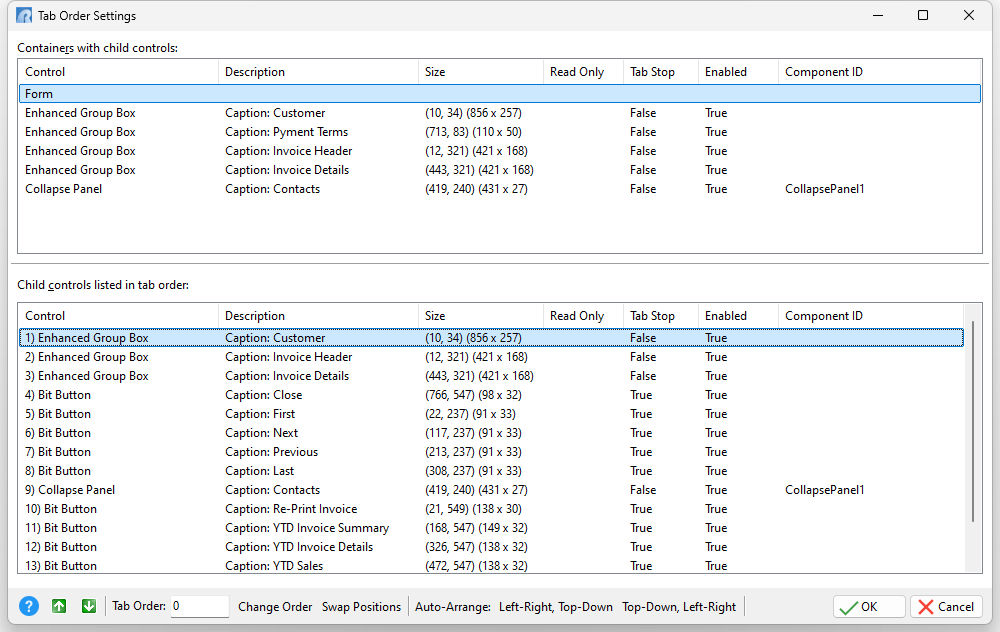
Right clicking on the form itself would display the list of container controls within the Tab Order Settings, along with any other controls on the form's layer.
Changing the Tab Order
Different methods are available to reorder the position of items within the tab order list. With the focus upon an item:
•the green arrow buttons move a selected item up or down
•the "Change Order" button will insert a selected item to a position defined within the "Tab Order" field
•the "Swap Positions" button will swap the position of a selected item with the position defined in the "Tab Order" field
•an item can be dragged and dropped with the mouse
Auto-Arrange the Tab Order
The Auto-Arrange buttons offer a quick and simple method to arrange the tab order for a group of controls in a container, where the controls' X and Y pixel coordinates ("Top" and "Left" properties) dictates the tab order. The controls' locations would only need to be placed in the desired coordinates needed for the tab focus movement, and the single button would assign the tab order to either the "Left-Right, Top-Down" or "Top-Down, Left-Right" order.
Auto-Selecting Controls
The Tab Order settings allows the ability to select an object on the form canvas with the [Ctrl+MouseHover] combination, while the modal Tab Order dialog is displayed. The feature allows for the selected form object to be highlighted in the Tab Order dialog for easier recognition of the control, especially on forms with many objects. Note that the feature only works on the list of objects in the lower child controls list view. If the control being hovered is not in the child controls list view, then the auto-selection will not take place.
Pop-up Menu
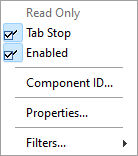
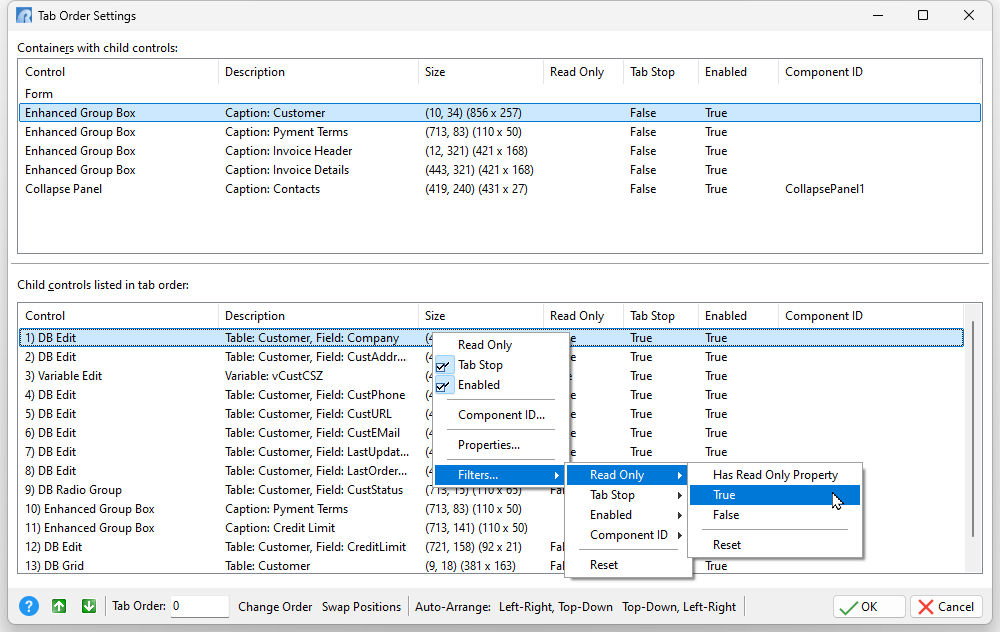
Right clicking upon a control in the lower panel displays a pop-up menu to alter the properties. The Read Only, Tab Stop, and Enabled values may be toggled to True/False values. The "Component ID..." and "Properties..." options will launch dialogs to alter the control's Component ID or all properties for the control. The Filters option will limit the displayed child controls matching Read Only, Tab Stop, Enabled, and Component ID values, to locate controls within large lists. When a filter is in place, the ability to alter the tab order is disabled.